Quick answer
A bird feeder camera that keeps going offline is usually losing power or WiFi. Check the battery and clean the solar panel first, then make sure the camera is on a 2.4 GHz network. Next, test the signal at the feeder and bring WiFi closer if it is weak. Finally, check for router changes and switch the 2.4 GHz channel to reduce interference.
In this guide
A bird feeder camera that keeps going offline is almost always losing power or losing WiFi. Check the easy causes first: a low battery or a dirty, shaded solar panel, then whether the camera is on a 2.4 GHz network. If both are fine, the problem is usually signal strength at the feeder, a change on the router, or interference from other devices.
Work through the steps below in order. Each one takes a few minutes, and the first three cover the most common causes.
First, notice when it goes offline
The timing of the dropouts is the best clue you have. Check the app's event history or simply note when the camera shows offline for a few days.
| Pattern | Likely cause | First thing to try |
|---|---|---|
| Offline overnight or after cloudy days, back by midday | Battery running low; solar panel not keeping up | Clean and re-aim the panel; charge the battery fully with a cable |
| Offline on freezing days | Cold weakens the battery, and charging may pause | Charge indoors, then give the panel the most winter sun you can |
| Never reconnects after a router change | New network name, password or router | Remove the camera in the app and add it again |
| Drops at random times | Weak or unstable signal at the feeder | Check signal strength; bring WiFi closer |
| Offline at the same time every night | Router on a reboot schedule or power-saving mode | Check the router's schedule settings |
| Offline after heavy rain | Moisture in a port or seal | Check port covers and seals; let it dry |
Step 1: Rule out power
A camera with a flat battery looks exactly like a camera with no WiFi, so start here. Open the app and check the battery level. If it is low, bring the camera in and charge it fully with a cable before doing anything else.
Check the solar panel
- Clean it. Pollen, dust, bird droppings and snow all cut how much the panel charges. Wipe it with a soft damp cloth.
- Check for shade. A spot that was sunny in spring can be shaded by summer leaves, and in winter the sun sits lower and a house or fence may block it.
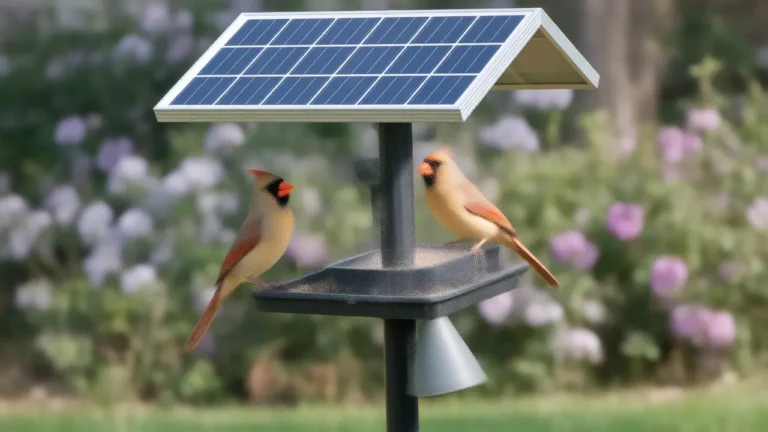
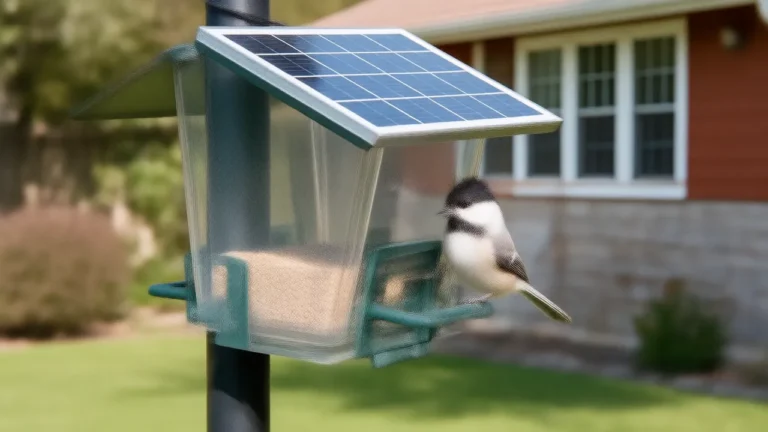
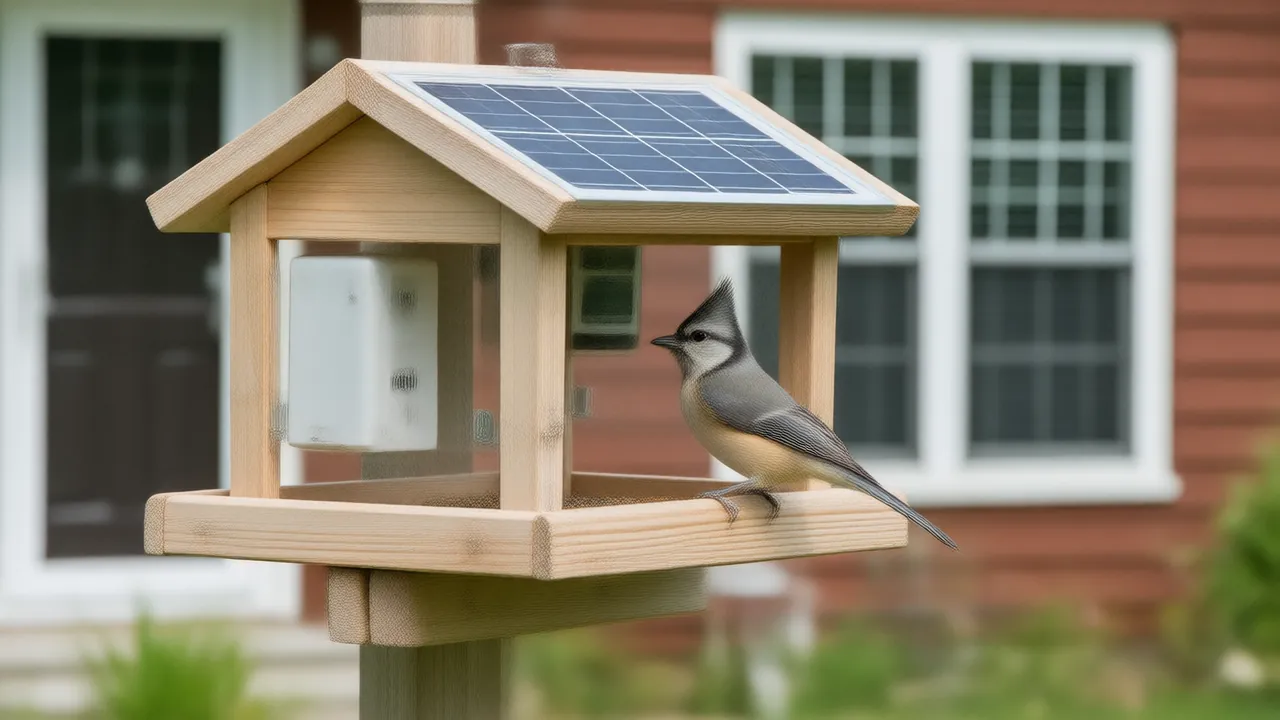
- Aim it south. In the US, a panel facing south with a clear view of the sky collects the most light. A panel that can be mounted separately from the feeder often does better than one on the feeder roof in a shady yard.
Reduce power use
On a busy feeder, high motion sensitivity and long clip lengths mean the camera records constantly, which drains the battery faster than a small solar panel can replace it. Lower the sensitivity, shorten clips, and keep live-view sessions short, since streaming live uses the most power. Short winter days and cold weather make all of this worse. Many batteries lose capacity in the cold, and many cameras will not charge their battery below freezing to protect it.
The guides on bird feeder camera battery drain and why a solar bird feeder is not charging go deeper on power problems.
Step 2: Check the WiFi band
Most bird feeder cameras connect only to 2.4 GHz WiFi, not 5 GHz. The 2.4 GHz band reaches farther and passes through walls better, which is why outdoor cameras use it. If the camera cannot see a 2.4 GHz network, it cannot connect, or it connects during setup and then drops.
Many home routers broadcast both bands under one network name and move devices between them automatically. That usually works, but it can confuse some cameras, particularly during setup. If yours keeps dropping:
- Open your router's app or settings page and look for an option to split the bands into separate network names, or a dedicated 2.4 GHz or smart-home network.
- Connect the camera to the 2.4 GHz network by name.
- If the camera only works on an older security setting, set the router to a mixed security mode that supports both older and newer devices rather than the newest mode only.
The guide on whether a bird feeder camera needs WiFi explains what the connection is used for and what works without it.
Step 3: Test the signal at the feeder
Distance and obstacles are the most common reason a camera connects fine at the kitchen table and then drops once it is mounted outside. Many camera apps show a signal-strength reading; if yours does, check it at different times of day.
Quick test: connect your phone to the 2.4 GHz network, walk to the feeder, and try loading a video. If your phone struggles to stream there, the camera will struggle too.
Signal loses strength through every wall and window between the router and the feeder. The worst offenders are brick, stone, stucco over metal mesh, metal siding, and energy-efficient window glass with a metal coating. Dense trees in full leaf also weaken the signal, which is why a camera can work well in winter and drop out in summer.
Ways to fix a weak signal, from simplest to most involved:
- Move the router higher and closer to the side of the house that faces the feeder.
- Move the feeder closer to the house, or to a spot with a clear line through a window rather than through walls.
- Add a mesh node or WiFi extender near a window facing the feeder.
- Install an outdoor-rated access point for a feeder far out in the yard.
For typical distances and what affects them, see how far a bird camera can be from the router.
Step 4: Look at the router
If the camera was fine for months and then started dropping, something may have changed on the network side:
- A new router or a new password. Your internet provider may have replaced the router, or someone changed the network name or password. The camera needs to be removed in the app and added again.
- Scheduled reboots. Some routers restart on a schedule, or switch off radios at night to save power. A camera may not reconnect cleanly afterward.
- Device limits and blocking. Parental controls, device filters or a full device list on an older router can block a camera from rejoining. Check that the camera appears as an allowed device.
- Guest network. Guest networks often isolate devices from each other, which can interfere with some camera apps. Use the main network or a dedicated smart-home network.
- Router updates. Keep the router's firmware current; updates often fix connection bugs.
Step 5: Reduce interference
The 2.4 GHz band is shared with microwave ovens, some cordless phones and baby monitors, Bluetooth devices and every neighbor's WiFi. In a crowded area, the camera's connection can break up at busy times such as evenings.
- Use a WiFi analyzer app on your phone to see which channels nearby networks are using.
- In your router settings, set the 2.4 GHz band to channel 1, 6 or 11, whichever is least crowded. In the US these are the three channels that do not overlap each other.
- If your router offers it, set the 2.4 GHz channel width to 20 MHz, which tends to be more stable in busy areas.
- Keep the router away from the microwave and other appliances.
Step 6: Reset, reconnect, or get help
If power and signal both check out and the camera still drops, work through the software and hardware:
- Update the app and the camera's firmware. Connection fixes often arrive in updates.
- Restart the camera. Power it off, wait a minute, and turn it back on.
- Remove and re-add the camera in the app, on the 2.4 GHz network.
- Inspect the hardware. Look for water or corrosion in the charging port, a loose port cover, or a damaged cable from the solar panel.
- Factory reset as a last resort, after saving any clips you want to keep. The guide to resetting a bird camera covers the usual steps.
- Contact the maker's support if the camera still drops with a full battery and a strong signal. That can point to a hardware fault.
Questions people ask
Why does my bird feeder camera keep disconnecting from WiFi?
The usual causes are a low battery, a camera trying to use a 5 GHz network, a weak signal at the feeder, or a change on the router such as a new password. Check them in that order.
Do bird feeder cameras work on 5 GHz WiFi?
Most connect only to 2.4 GHz. If your router combines both bands under one name, create a separate 2.4 GHz network or smart-home network and connect the camera to it.
Why does my feeder camera go offline at night?
Most often the battery is running low and the camera shuts down until the solar panel recharges it. It can also be a router that reboots or turns off its radios on a schedule.
Why does my bird camera work in winter but drop out in summer?
Trees and shrubs in full leaf weaken WiFi signals, and summer foliage can also shade the solar panel. Bring WiFi closer to the feeder or move the camera to a clearer spot.
Written by the Backyard Birdcam team with AI assistance. Found something we got wrong? Email shop@smarternewsnow.com and we will fix it. How we write our guides.